AutoInvest update: Project Cap and Voucher Queue explained
19.10.2026
8 min
Updated: 19.10.2026
AutoInvest now offers two ways to manage your automatic investments on Maclear: Project Cap and Voucher Queue.
Project Cap lets you set a maximum total investment amount per project for each strategy. Voucher Queue lets you select vouchers in advance, so AutoInvest can apply them automatically in the order you choose.
This guide explains how both features work, how to set them up, and what happens as your strategy continues investing.
In This Article
What’s new in AutoInvest
Feature
What it does
Project Cap (Maximum amount per project)
Limits the combined amount a single strategy can invest in any one project.
Voucher Queue
Applies your selected vouchers to new AutoInvest investments, one at a time, in queue order.
Project Cap: how the limit works
Project Cap (Maximum amount per project) is the maximum total amount that one AutoInvest strategy can invest in a particular project.
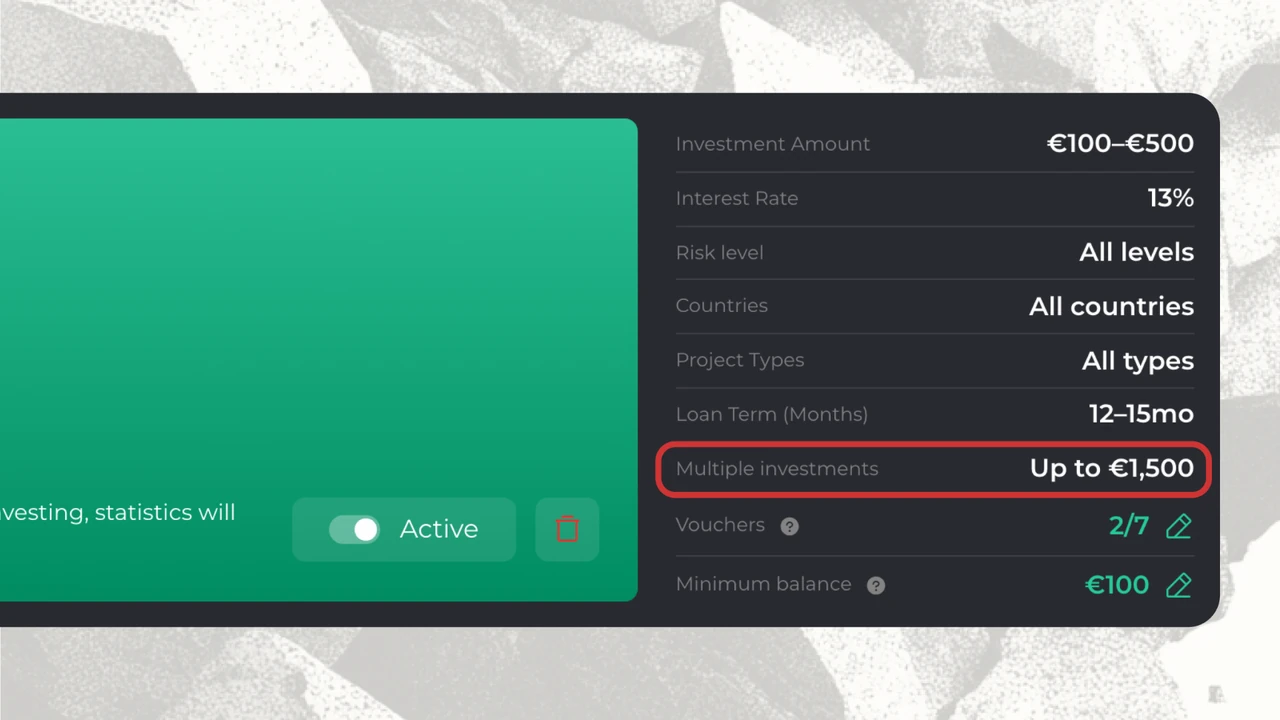
It works alongside Multiple investments in one project. When that option is enabled, AutoInvest can create more than one investment in an eligible project. Project Cap limits the combined amount of those investments.
Investment Amount vs. Project Cap
Setting
What it controls
Example
Investment Amount — From / To
Minimum and maximum amount of one individual investment.
€100–€500
Maximum amount per project
Maximum combined amount invested by one strategy in one project.
€2,000
Example 1: four investments in the same project
Suppose your strategy has these settings:
Investment Amount: €100–€500
Multiple investments in one project: enabled
Maximum amount per project: €2,000
If the project meets the strategy’s criteria and sufficient funds are available, AutoInvest can make four investments of €500 each:
Investment
Amount
Total in the project
1
€500
€500
2
€500
€1,000
3
€500
€1,500
4
€500
€2,000
After the total reaches €2,000, the same strategy cannot make another investment in that project.
Example 2: the remaining cap is below your minimum investment
You set Investment Amount to €100–€500 and Maximum amount per project to €1,580. AutoInvest has already made three investments of €500, for a total of €1,500.
That leaves only €80 before reaching your cap. Your minimum investment is €100, so AutoInvest cannot make another investment in that project. The total stays at €1,500.
Important: AutoInvest can invest less than the cap, never more.
Key Project Cap rules
Project Cap applies per strategy and per project.
Strategies can invest in the same project, each within its own cap.
Investments must stay within your Investment Amount — From / To range.
Maximum amount per project must be at least as high as Investment Amount — To.
Investments can fall below Investment Amount — To when the cap leaves less room, but not below Investment Amount — From.
Platform minimum for a single investment is €50.
AutoInvest criteria beyond the cap apply too, including available funds, Minimum Balance and the amount a project has left to raise.
Important: You can set Project Cap only when creating a new strategy. You cannot change it after saving. To use a different cap, create a new strategy.
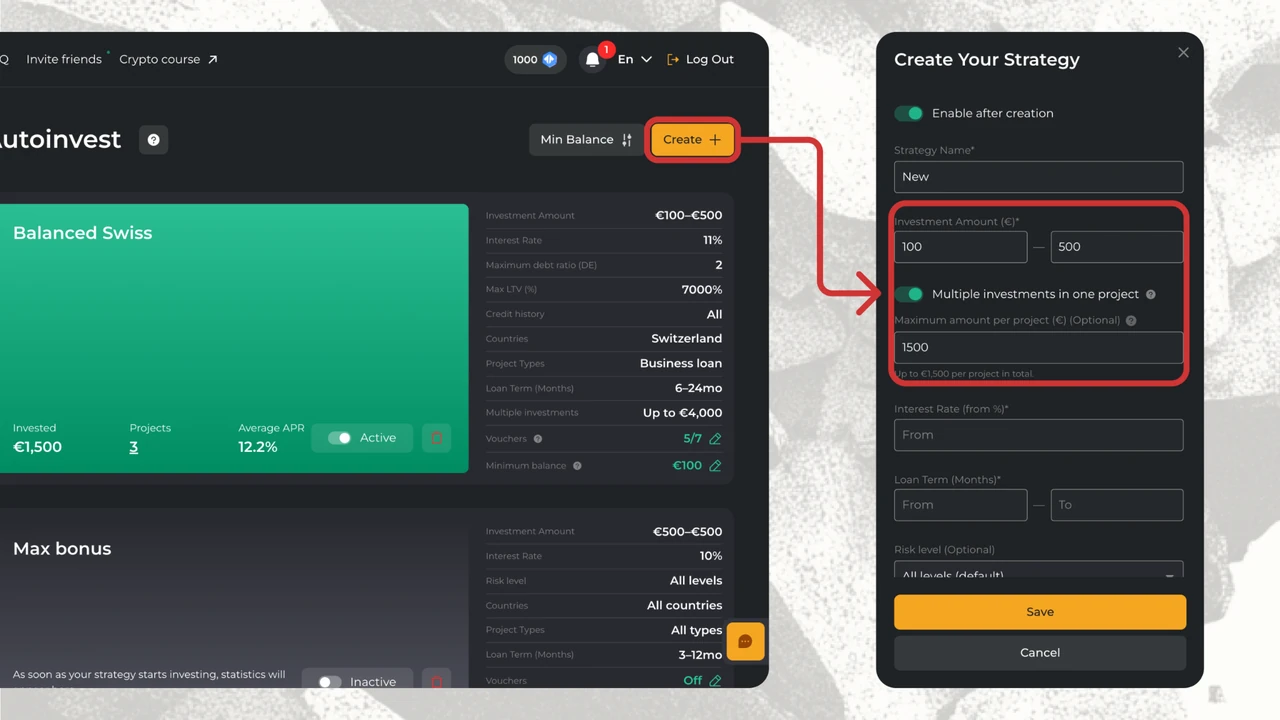
How to set a Project Cap
Go to AutoInvest.
Click Create to start a new strategy.
Complete the main settings for your strategy.
Enter the minimum and maximum amount of one investment in Investment Amount — From / To.
Enable Multiple investments in one project.
Enter the maximum combined amount for that project in Maximum amount per project (€).
Click Save to create the strategy.
Voucher Queue: how it works
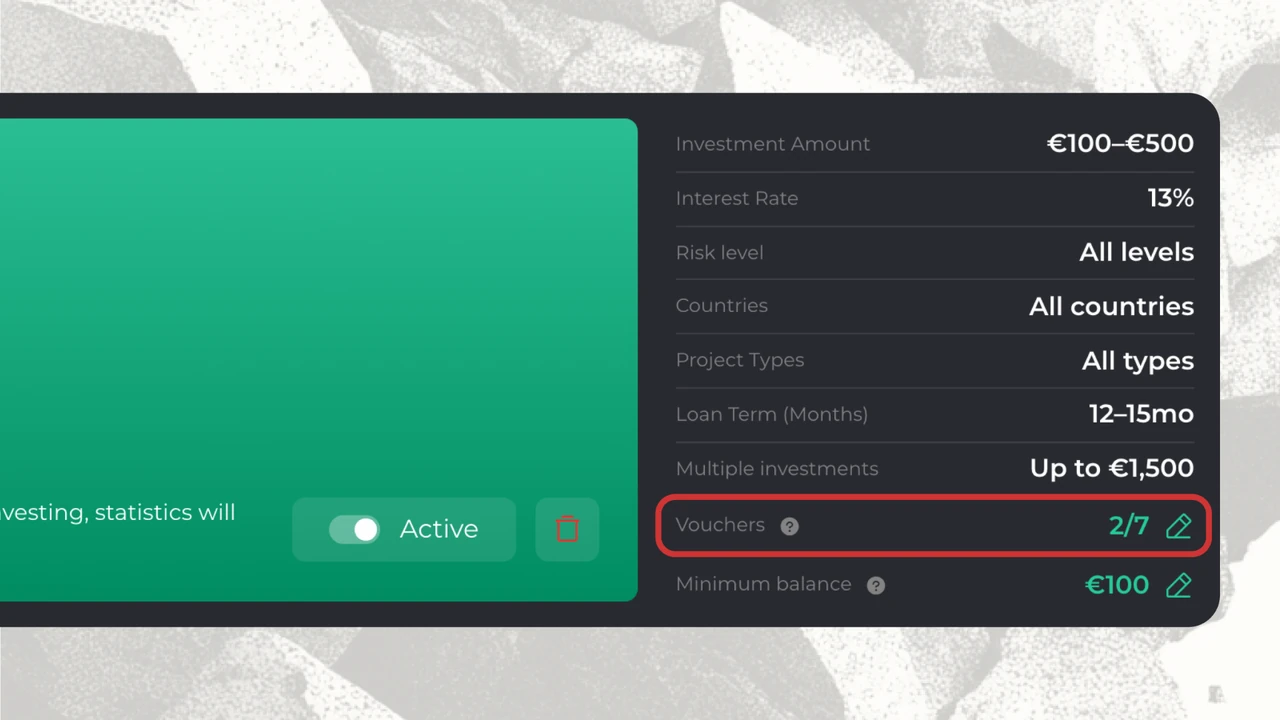
Voucher Queue lets you choose eligible vouchers for a particular AutoInvest strategy. AutoInvest applies those vouchers to new investments in the order they were added to the queue.
Vouchers belong to one AutoInvest strategy at a time.
Investments take a single voucher each.
AutoInvest checks vouchers in queue order and applies them according to the strategy’s settings and voucher eligibility requirements.
AutoInvest removes a voucher from the queue once it creates an investment reservation with that voucher.
AutoInvest continues creating eligible investments without vouchers once the queue runs out.
Example: three vouchers, four investments
Your strategy has an Investment Amount range of €100–€500. You add these vouchers in this order: Gold league voucher (+1.5% yield), Match Day voucher (+1% yield), and Common voucher (+1% yield).
Investment
Amount
Voucher applied
1
€500
Gold league voucher (+1.5%)
2
€500
Match Day voucher (+1%)
3
€500
Common voucher (+1%)
4
€500
No voucher
The queue is empty after the third investment, so AutoInvest creates the fourth without a voucher.
Which vouchers can I add?
A voucher must belong to your account, have remaining uses, be unexpired and meet its eligibility requirements.
Important: Each voucher can be assigned to only one AutoInvest strategy at a time, even if it has not been used yet. Once a voucher is added to a strategy, it cannot be removed individually. To change your selected vouchers, you need to delete the existing strategy and create a new one.
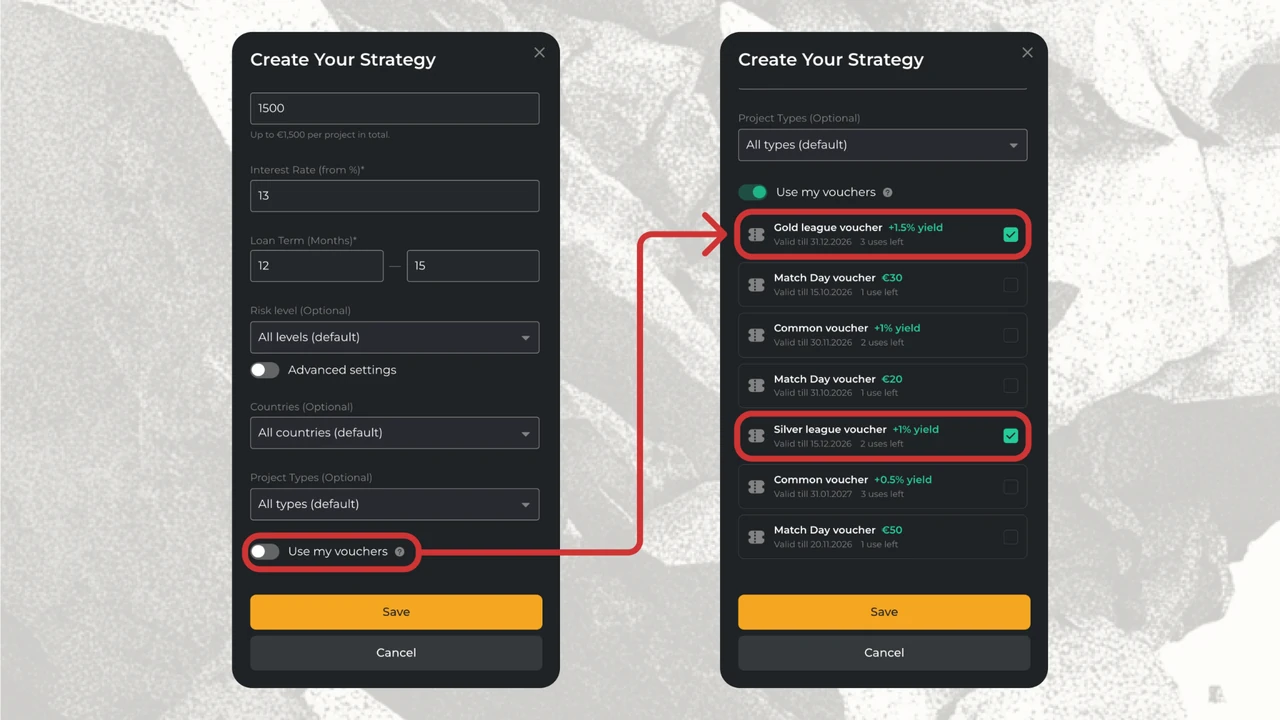
How to add vouchers to a new strategy
Go to AutoInvest → Create.
Complete your strategy settings.
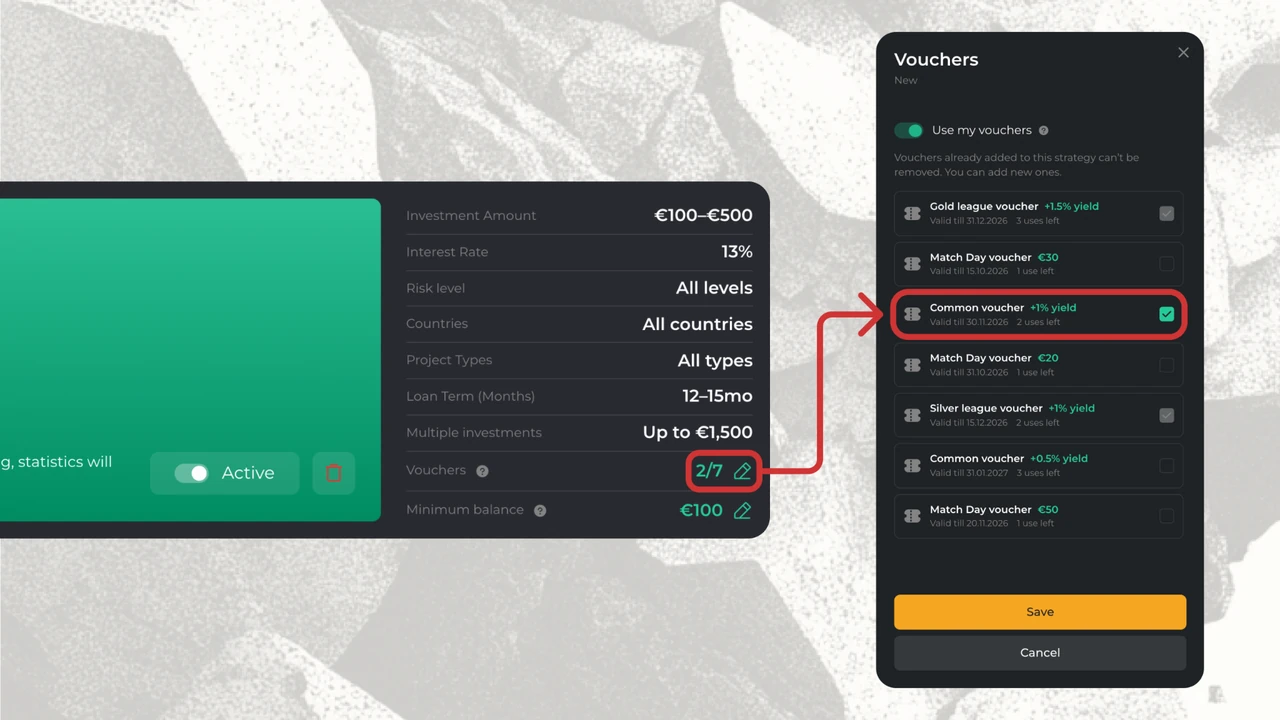
Enable “Use my vouchers”.
Select the eligible vouchers you want to add.
Click Save.
The order in which you add vouchers determines the order in which AutoInvest applies them.
What information does the voucher list show?
Field
Meaning
Voucher name
The voucher’s name
Bonus
The size or type of bonus
Valid till
The voucher’s expiry date
Uses left
How many uses remain
Checkbox
Select the voucher for this strategy’s queue
How to manage vouchers in an existing strategy
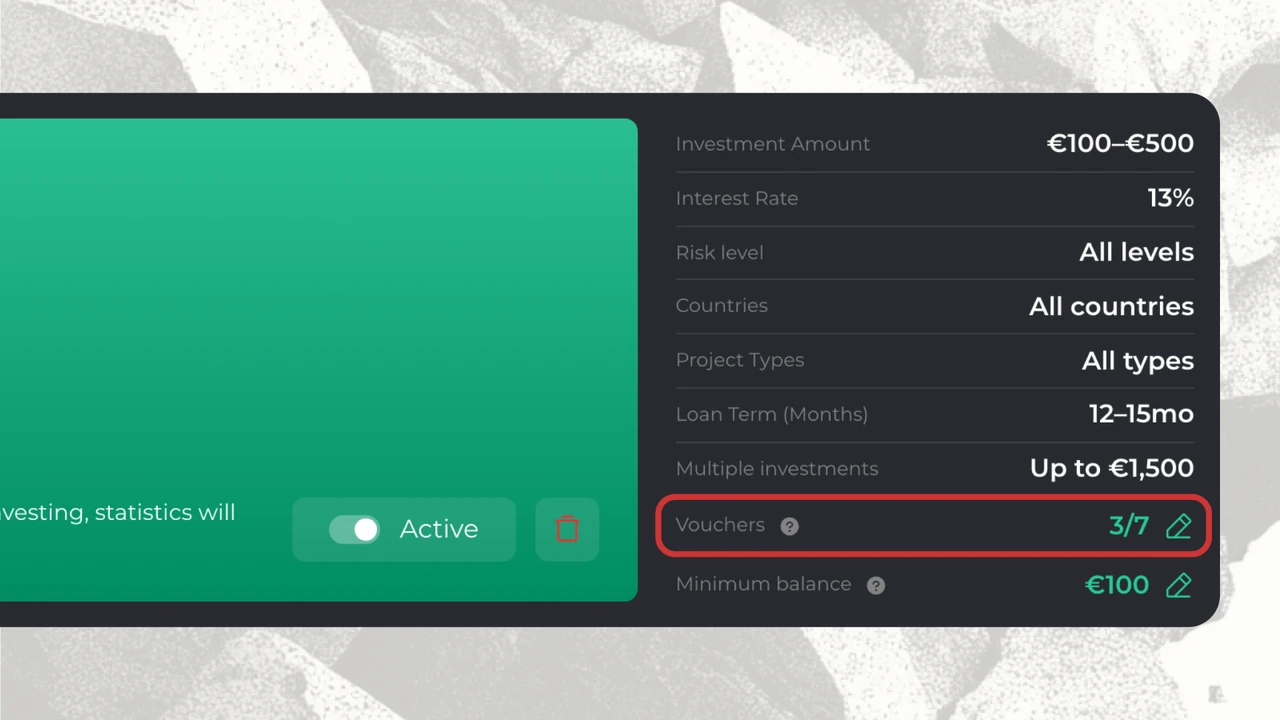
You can add eligible vouchers to an existing AutoInvest strategy without changing its other settings, provided the strategy is active. However, vouchers already added to the queue cannot be removed individually. To remove or replace a voucher, you must delete the current strategy and create a new one.
Add another voucher
Open your existing AutoInvest strategy. It must be turned on.
Open its voucher management settings.
Select an additional eligible voucher that is not assigned to another strategy.
Click Save.
New vouchers are always placed at the end of the current queue. They do not move ahead of vouchers already waiting to be used.
What if I want to remove a voucher?
Individual vouchers cannot be removed from an existing strategy.
To change your selection, delete the strategy and create a new one with the vouchers you want.
Important: Deleting a strategy means you will need to configure its settings again.
What happens when you disable a strategy?
While a strategy is disabled, it creates no new investments and uses no vouchers from its queue. The vouchers stay in the queue, and you cannot add those same vouchers to another AutoInvest strategy while they remain there. When you enable the strategy again, AutoInvest resumes using the remaining vouchers in their original order.
Frequently asked questions
What is Maximum amount per project?
It is the maximum combined amount one AutoInvest strategy can invest in a particular project. For example, with a €2,000 cap, that strategy cannot invest more than €2,000 in the project.
How is Maximum amount per project different from Investment Amount?
Investment Amount sets the minimum and maximum size of each individual investment. Maximum amount per project limits the combined amount invested by one strategy in one project. For example, a €100–€500 range and a €2,000 cap can allow four separate €500 investments.
Can I change Maximum amount per project after creating a strategy?
No. You can set Project Cap only when creating the strategy. To choose a different value, create a new strategy.
Why did AutoInvest invest less than my Project Cap?
AutoInvest invests less than the cap when you lack available funds, your balance reaches your Minimum Balance, the project needs less funding, or the remainder falls below your minimum investment.
Can two AutoInvest strategies invest in the same project?
Yes. Project Cap is calculated independently for each strategy. For example, two strategies with a €2,000 cap can each invest up to €2,000 in the same project if their other conditions are met.
How do I use vouchers through AutoInvest?
When creating a strategy, enable Use my vouchers and select your eligible vouchers. AutoInvest then checks them in the order they were added and applies the first voucher that fits each new investment.
Can I add a voucher after creating a strategy?
Yes. Open an existing strategy and add an eligible voucher to its queue. Newly added vouchers go to the end of the queue.
Can I remove a voucher from a strategy?
No. Once a voucher has been added to an AutoInvest strategy, it cannot be removed individually. To change your selected vouchers, you need to delete the existing strategy and create a new one.
How many vouchers can be applied to one investment?
At most one. As AutoInvest creates additional investments, it uses the next voucher in the queue.
What happens when the voucher queue runs out?
AutoInvest continues creating eligible investments without vouchers, according to your strategy settings.
Why was my investment created without a voucher?
This may happen if no vouchers have been selected, the voucher queue is empty, a voucher has expired, or a voucher does not meet the eligibility requirements for a particular investment. For example, a cash voucher may not be applied if its value is lower than the minimum Investment Amount specified in your strategy.
Check the vouchers assigned to your strategy, their expiration dates, and their eligibility requirements.
What happens to my vouchers when I disable a strategy?
The queue is not used while the strategy is disabled. When you enable it again, AutoInvest resumes with the first voucher remaining in the queue.
Can I use the same voucher in different AutoInvest strategies?
No. Each voucher can be assigned to only one AutoInvest strategy at a time. If a voucher is already assigned to another strategy, you cannot select it for a new one. To change the voucher assignment, you need to delete the existing strategy and create a new one.